

Getting Started
Walks a new user through signing in to Reap, opening the Card Issuing dashboard, and completing the developer setup that powers an integration. Covers webhooks, delivery logs, API keys, IP whitelisting, the public key, and KYC API keys. All setup is done through the CaaS Dashboard.
Purpose: Help new users sign in, reach the Developer tab in the CaaS Dashboard, and complete the initial configuration needed to authenticate, receive events, and call the Card Issuing APIs.
When to Use This
Use this guide to:
- Sign in to Reap and open the Card Issuing dashboard for the first time
- Find where developer configuration lives inside the CaaS Dashboard
- Configure a webhook to receive real time event notifications
- Monitor webhook delivery logs and retry failed events
- Decide between Standard Authorization and Real-Time Authorization before generating keys
- Generate Sandbox or Production API keys with the right permissions
- Whitelist the server IP addresses that will call the Reap APIs
- Upload the public key used by the
/revealendpoint - Generate KYC API keys for identity verification flows
Overview
The CaaS Dashboard is the starting point for every Card Issuing integration. After signing in and selecting the Card Issuing product, all developer configuration lives in one place under Account settings → Developer. That single tab covers webhook configuration, delivery log monitoring, API key generation, IP whitelisting, public key management for the /reveal endpoint, and KYC API key generation.
Each section can be completed independently and changes take effect immediately. A new integration can move from first sign in to a working Sandbox setup in a few minutes.
Prerequisites
- A registered Reap account, created in advance or through the Sign up for free link on the sign in page
- Access to the CaaS Dashboard with permission to view the Developer tab
- A decision between Standard Authorization and Real-Time Authorization for the integration
- A publicly reachable destination URL if a webhook will be configured
- The IP addresses of every server that will call the Reap APIs
- A public key in plaintext format if the integration will use the
/revealendpoint
Key Concepts
CaaS Dashboard
The web interface for the Card Issuing service. Every setting covered in this guide lives under Account settings → Developer.
Business ID
A unique identifier for the business. The value appears at the top of the Settings page with a copy icon and can also be copied through Copy business ID in the profile menu.
Webhook
A destination URL that receives real time event notifications from Reap. Every delivery attempt is recorded in the webhook delivery logs where failed events can be retried.
API Key
A credential that authenticates requests to the Card Issuing APIs. Each key belongs to one environment and carries the permissions selected at generation.
Available Environments
| Value | Description | Typical Use Case |
|---|---|---|
Sandbox | A test environment for building the integration | Development and integration testing |
Production | The live environment | Real traffic once testing is complete |
Available Permissions
| Value | Description | Typical Use Case |
|---|---|---|
Read All | Grants read access to resources | Reporting and monitoring integrations |
Write All | Grants write access to resources | Card issuance and management flows |
Authorization Model
The model that determines which system holds the authoritative card balance when an authorization request arrives. The model is selected once per account and applies to all sandbox testing on that account.
Available Models
| Value | Description | Typical Use Case |
|---|---|---|
Standard Authorization | Reap acts as the authoritative source for card balances, evaluating the availableCredit of each card to determine whether to approve or decline incoming authorization requests | Programs that let Reap manage card balances |
Real-Time Authorization | The card program owner maintains the authoritative record of card balances and approves or declines transactions based on balance availability, responding within 1.6 seconds for successful processing | Programs that maintain an independent ledger |
IP Whitelisting
A list of approved server addresses. Only whitelisted IP addresses can call the Reap APIs, so every server in the infrastructure needs an entry.
Public Key
An optional key used by the /reveal endpoint. The key must be supplied in plaintext format with the BEGIN PUBLIC KEY and END PUBLIC KEY lines included.
KYC API Key
A separate credential for KYC requests, managed in a dedicated section of the Developer tab. The generation dialog currently offers the Sandbox type.
Flow Overview
- Sign in to the Reap account
- Click Get started under Card Issuing on the product selection screen
- Open the profile menu and click Account settings
- Click the Developer tab on the Settings page
- Configure a webhook and check the delivery logs
- Decide which authorization model the integration will use
- Generate an API key with the required environment and permissions
- Whitelist the server IP addresses that will call the APIs
- Update the public key if the
/revealendpoint will be used - Generate a KYC API key if the integration includes KYC
Set Up an Integration via the CaaS Dashboard
The CaaS Dashboard is the interface for the entire setup flow.
Step 1: Sign In to the Reap Account
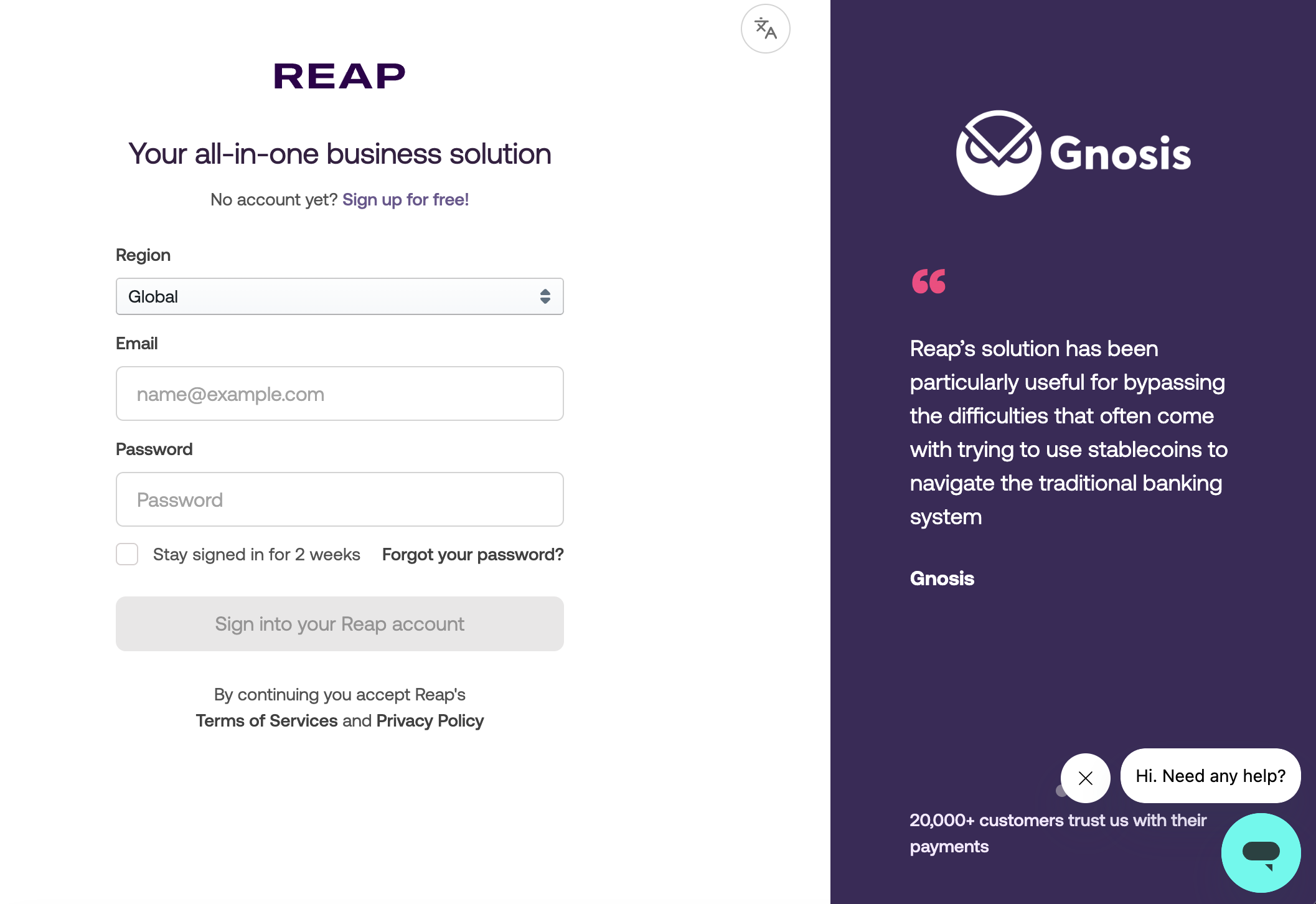
Select a region, enter the account email address and password, then click Sign in on the Reap sign in page.
Step 2: Select the Card Issuing Product
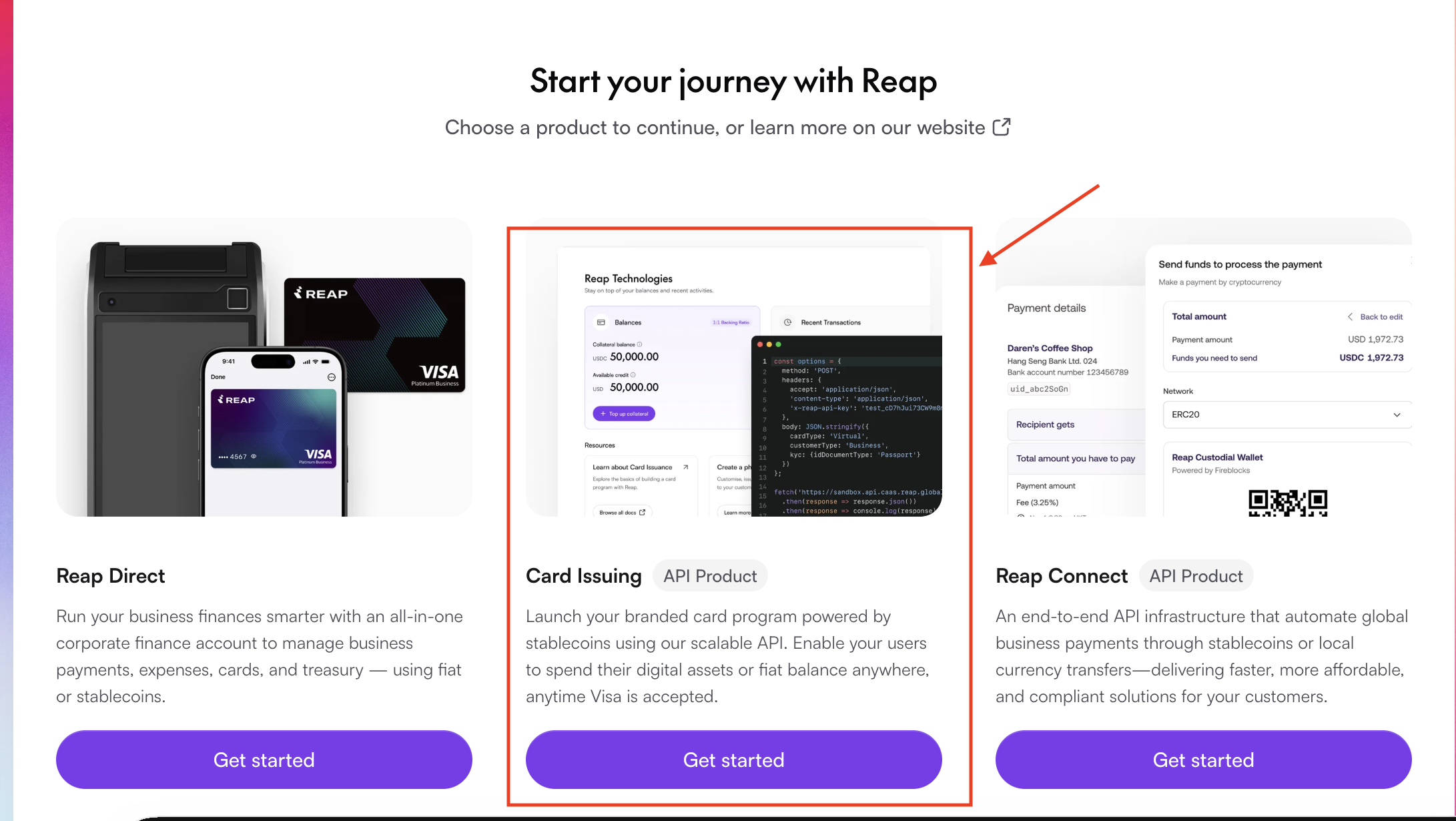
Click "Get started" under Card Issuing to open the dashboard on the product selection screen.
Step 3: Open Account Settings
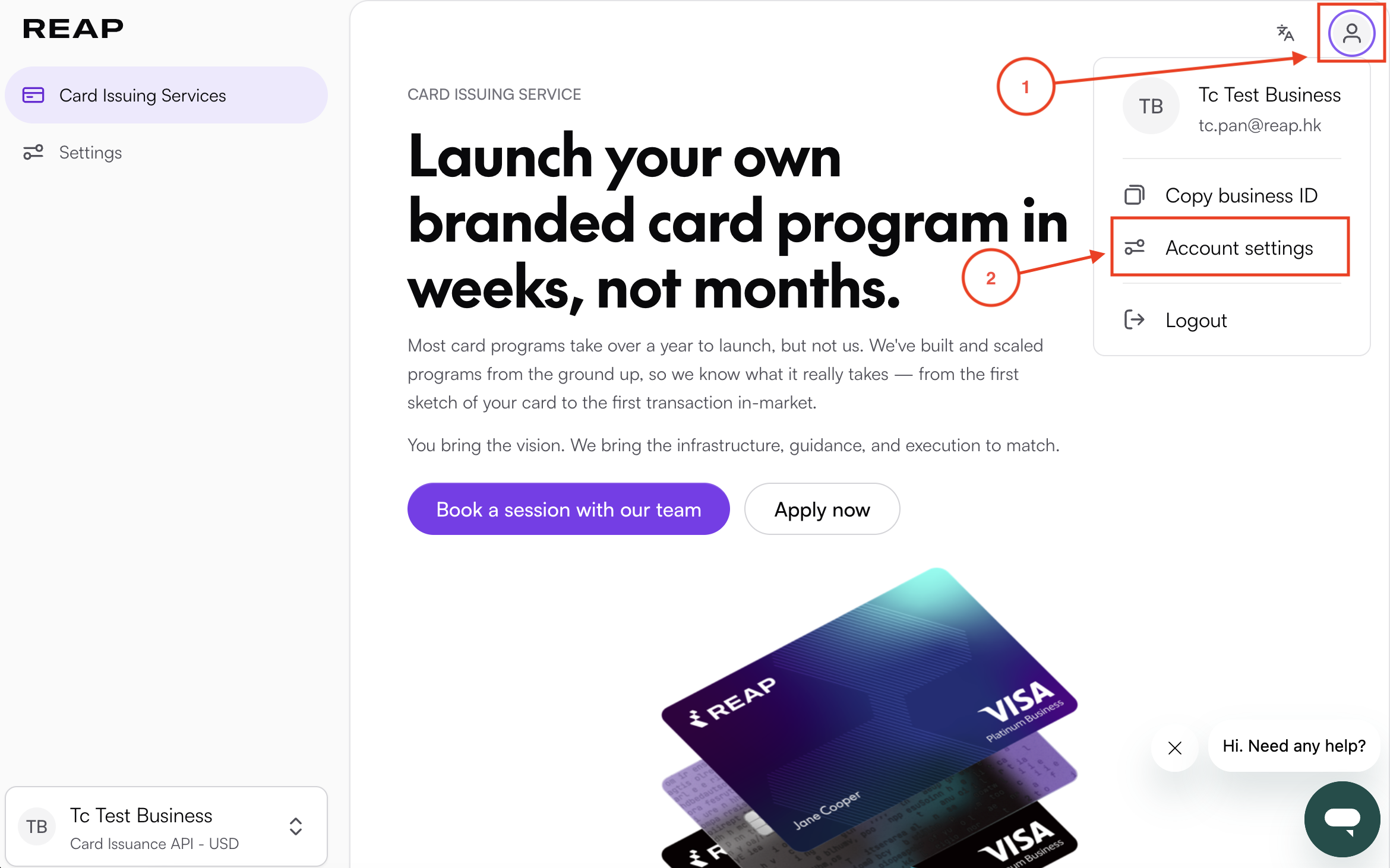
Click the "profile icon" in the top right corner, then select "Account settings".
Step 4: Open the Developer Tab and View Webhooks
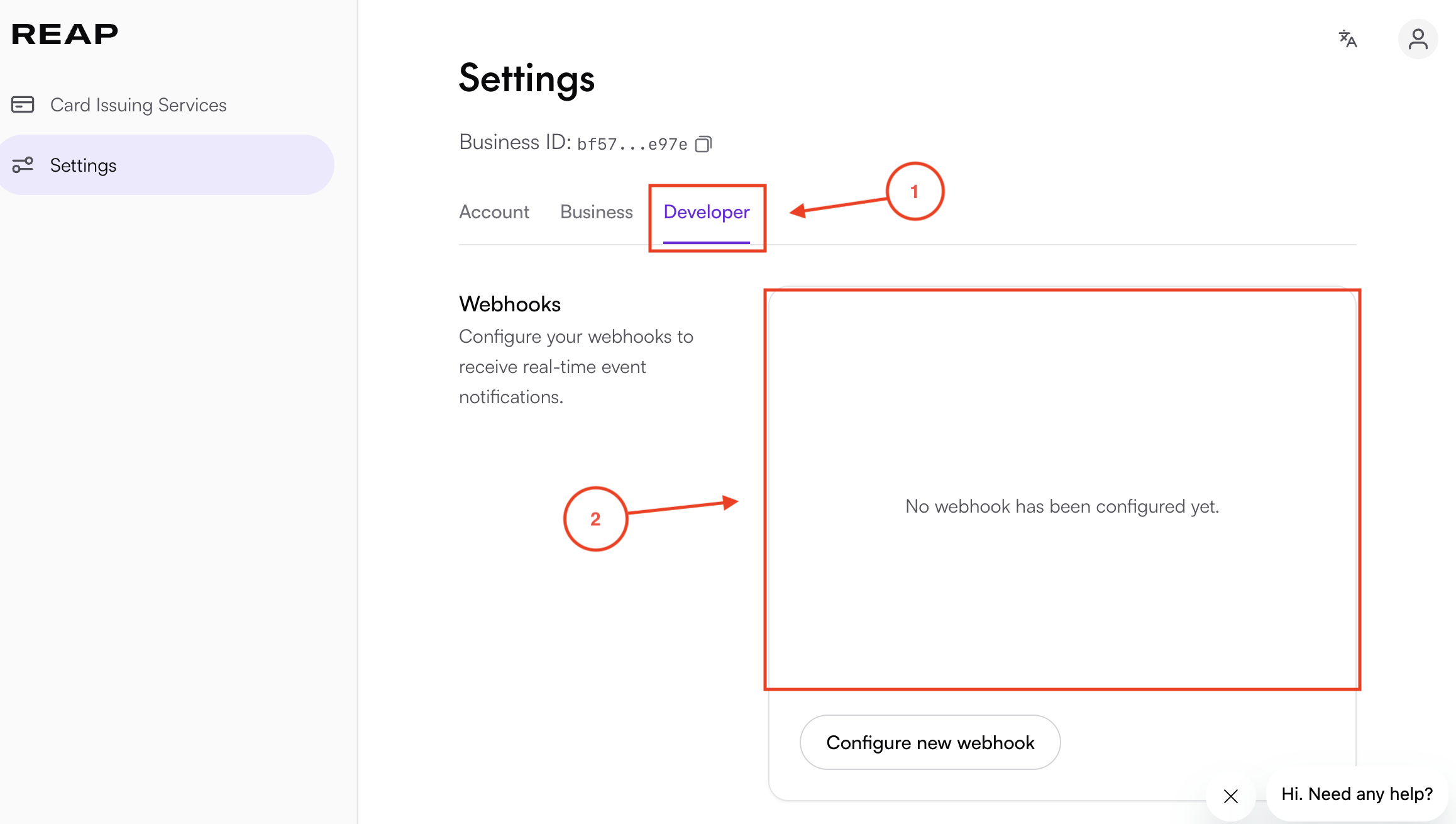
Click the "Developer" tab to reveal all developer configuration.
- The Webhooks section appears first and shows the currently configured destination for real time event notifications.
Step 5: Configure a New Webhook
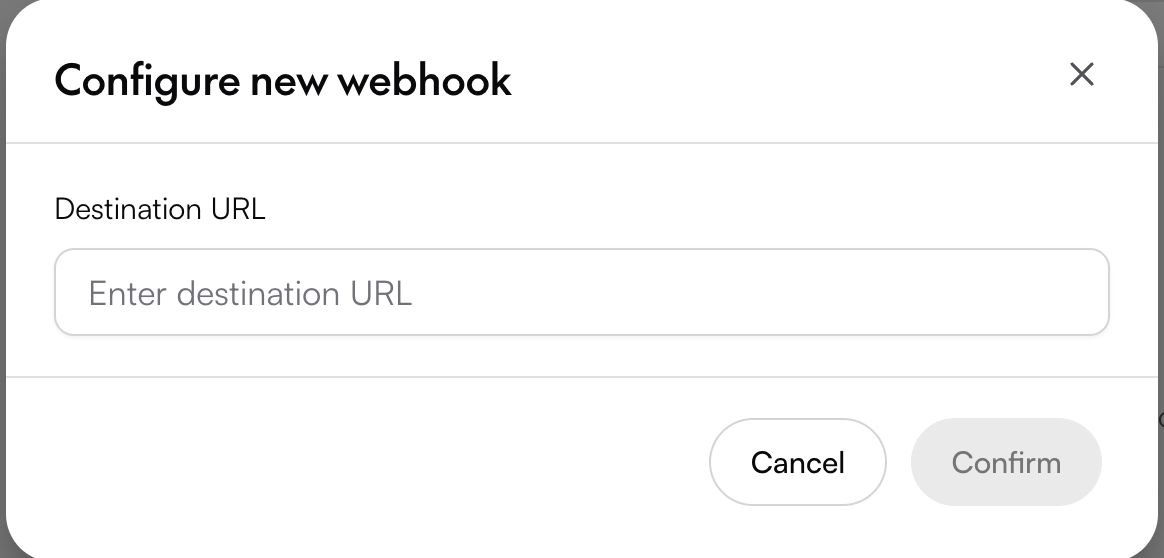
Click "Configure new webhook" to open the configuration dialog.
- Enter the destination URL that should receive event notifications, then click Confirm.
Step 6: Monitor Webhook Delivery Logs
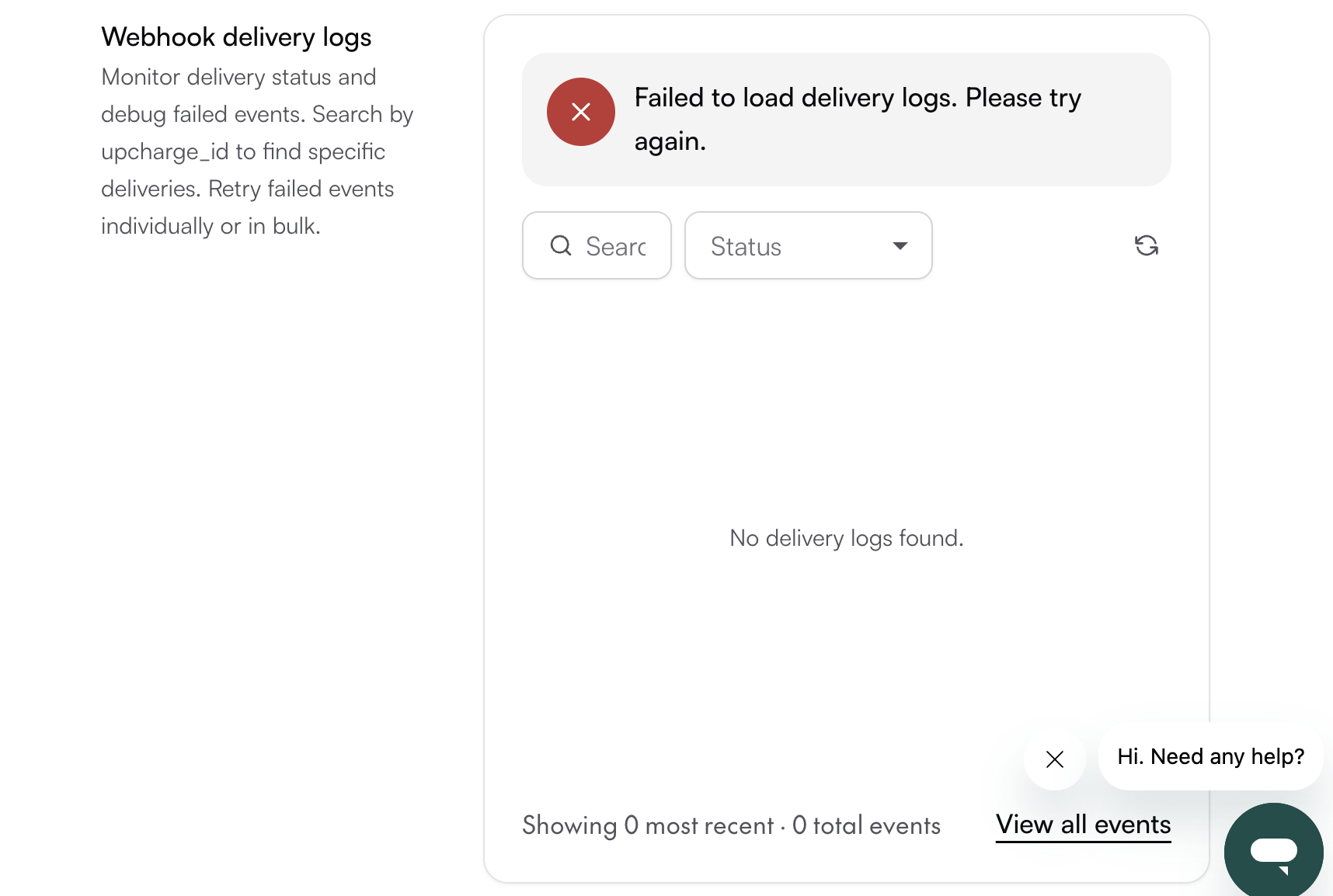
The Webhook delivery logs section supports monitoring delivery status and debugging failed events.
- Search by
upcharge_idto find specific deliveries - Filter events with the Status dropdown
- Retry failed events individually or in bulk
- Click the refresh icon if the panel shows Failed to load delivery logs
- Click View all events to open the full event history
Step 7: View API Keys and API Versions
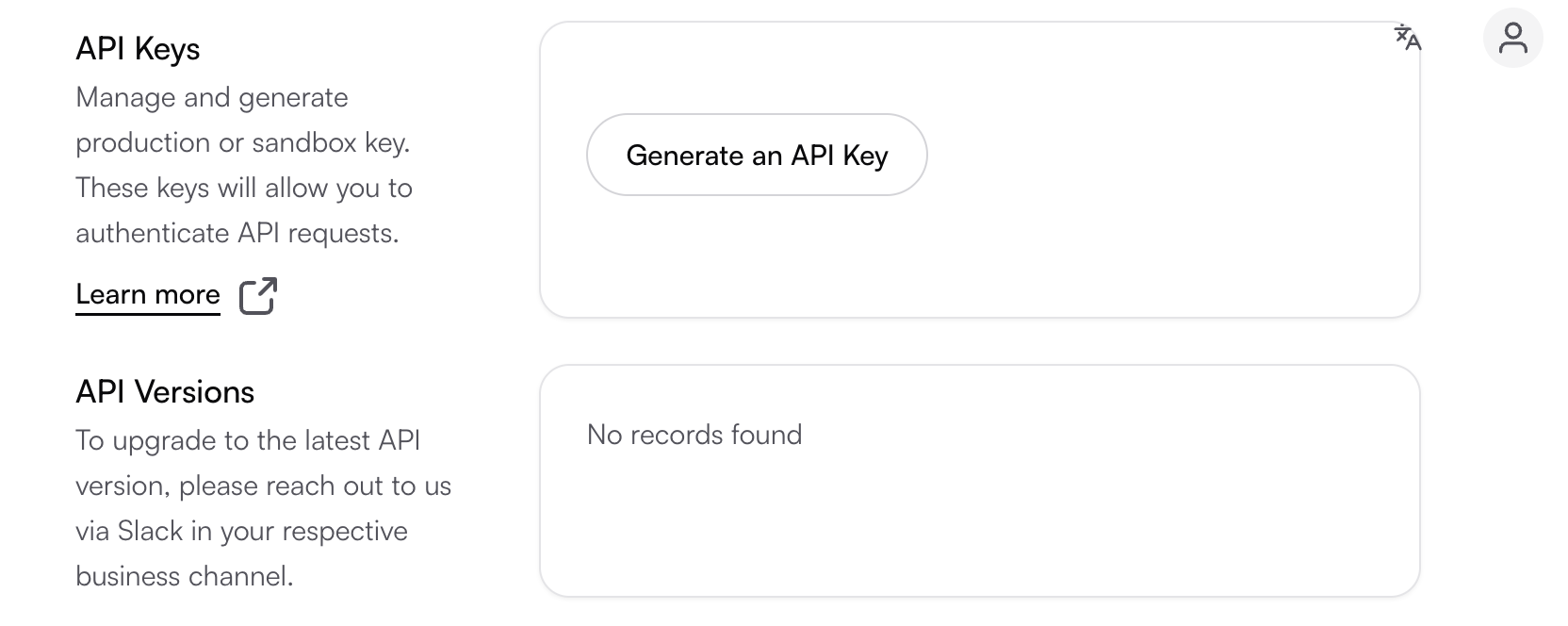
The API Keys section is where Production and Sandbox keys are managed. The API Versions section below lists the versions enabled.
Step 8: Generate an API Key
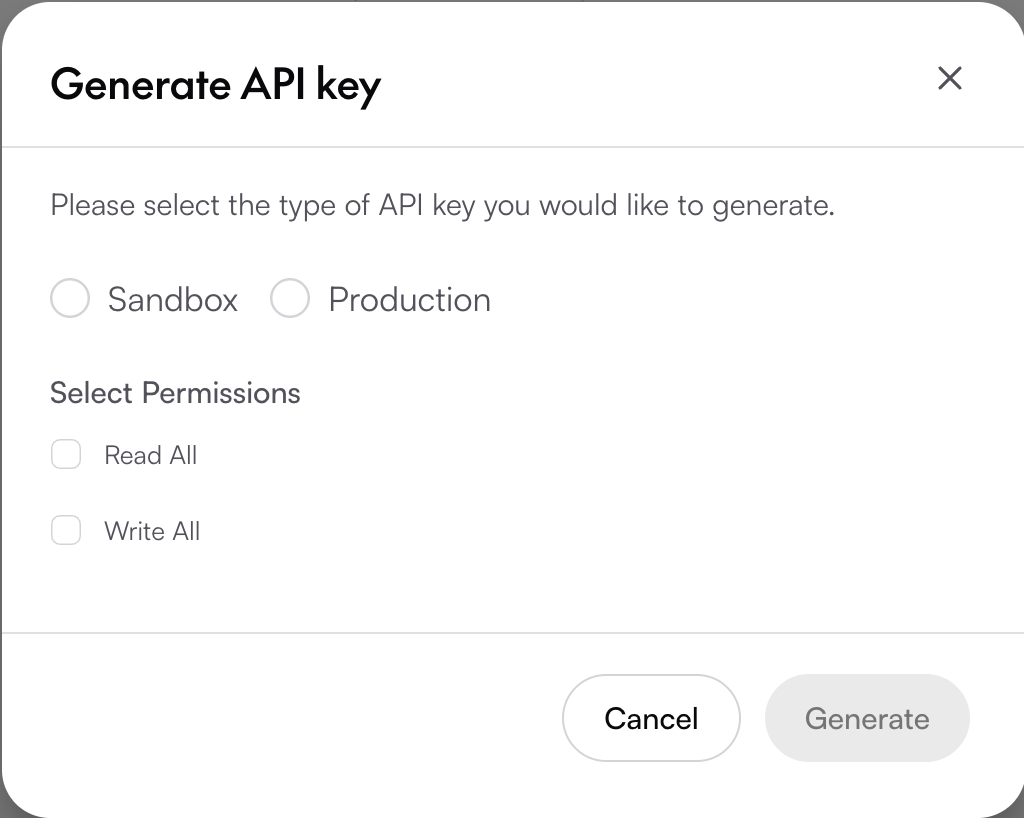
Before generating the first sandbox API key, choose either Standard Authorization or Real-Time Authorization.
This choice applies only to sandbox API keys and cannot be changed after the first key is created. Each Reap account supports one authorization model for sandbox testing. To test both models, use two Reap accounts registered with different email addresses.
See the Authorization Model Comparison Guide or contact a relationship manager for guidance.
Click "Generate an API Key" to open the generation dialog.
- Select the type of key to generate, either Sandbox or Production
- Select the permissions the key should carry, Read All, Write All, or both
- Click Generate to create the key
Step 9: View Whitelisted IP Addresses
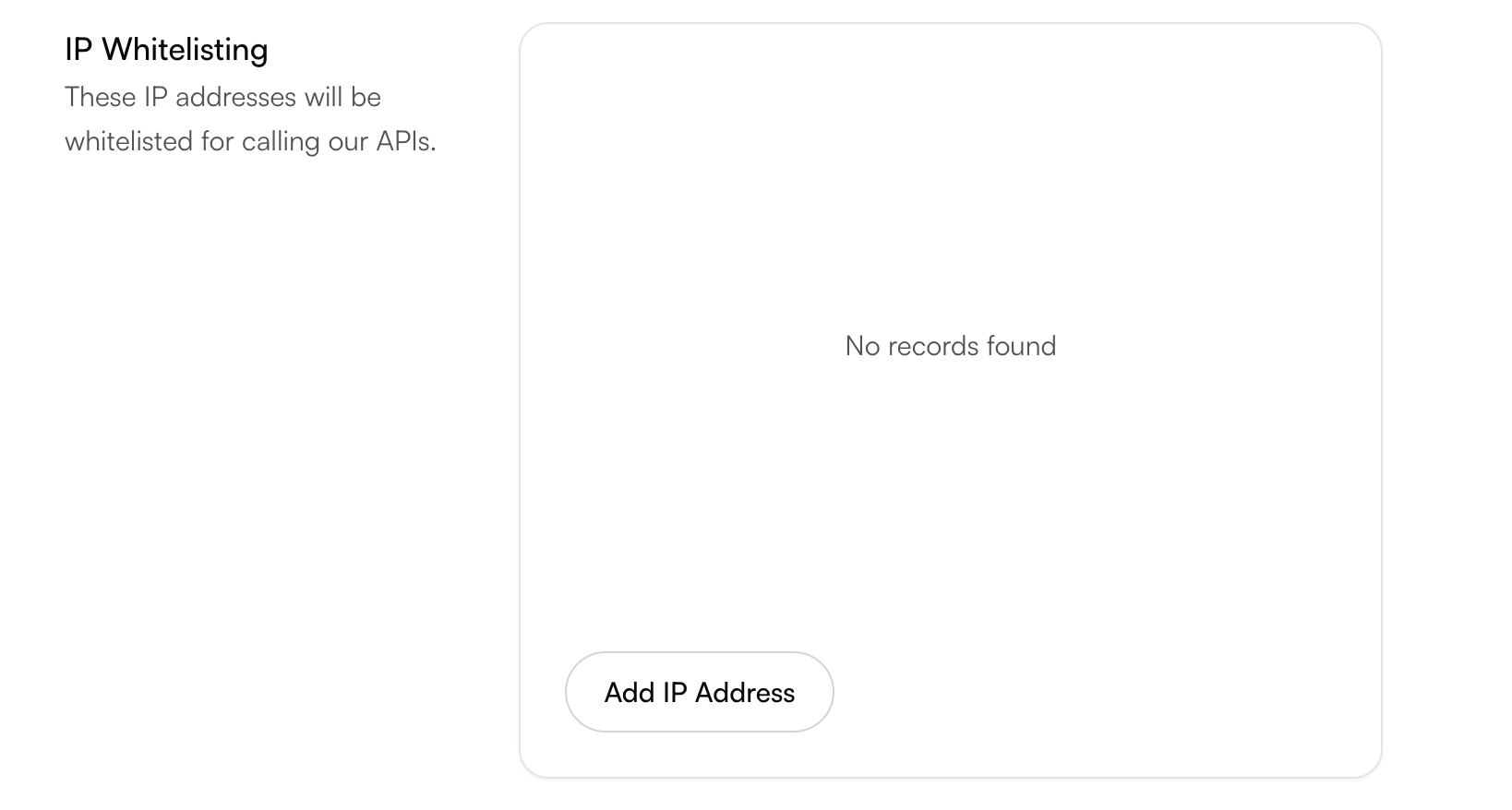
The IP Whitelisting section lists the IP addresses that are allowed to call the Reap APIs.
Step 10: Whitelist an IP Address
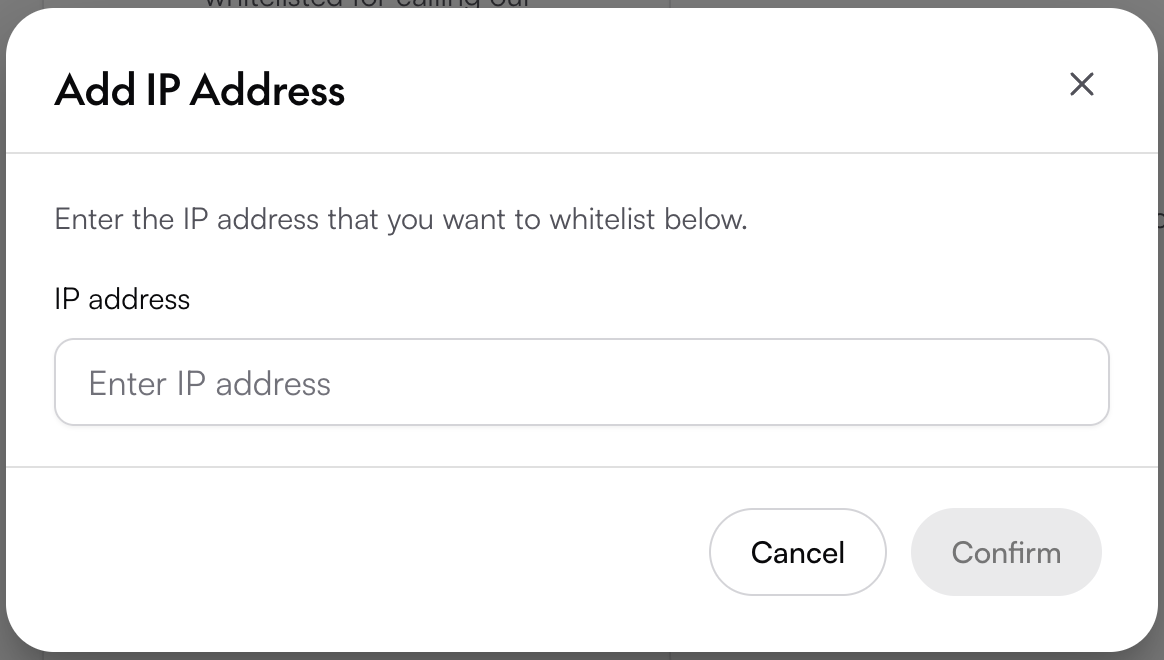
Click "Add IP Address" to open the dialog.
- Enter the IP address to whitelist, then click Confirm.
Step 11: View the Public Key

The Public key section is marked Optional and only matters if the integration uses the /reveal endpoint.
Step 12: Update the Public Key
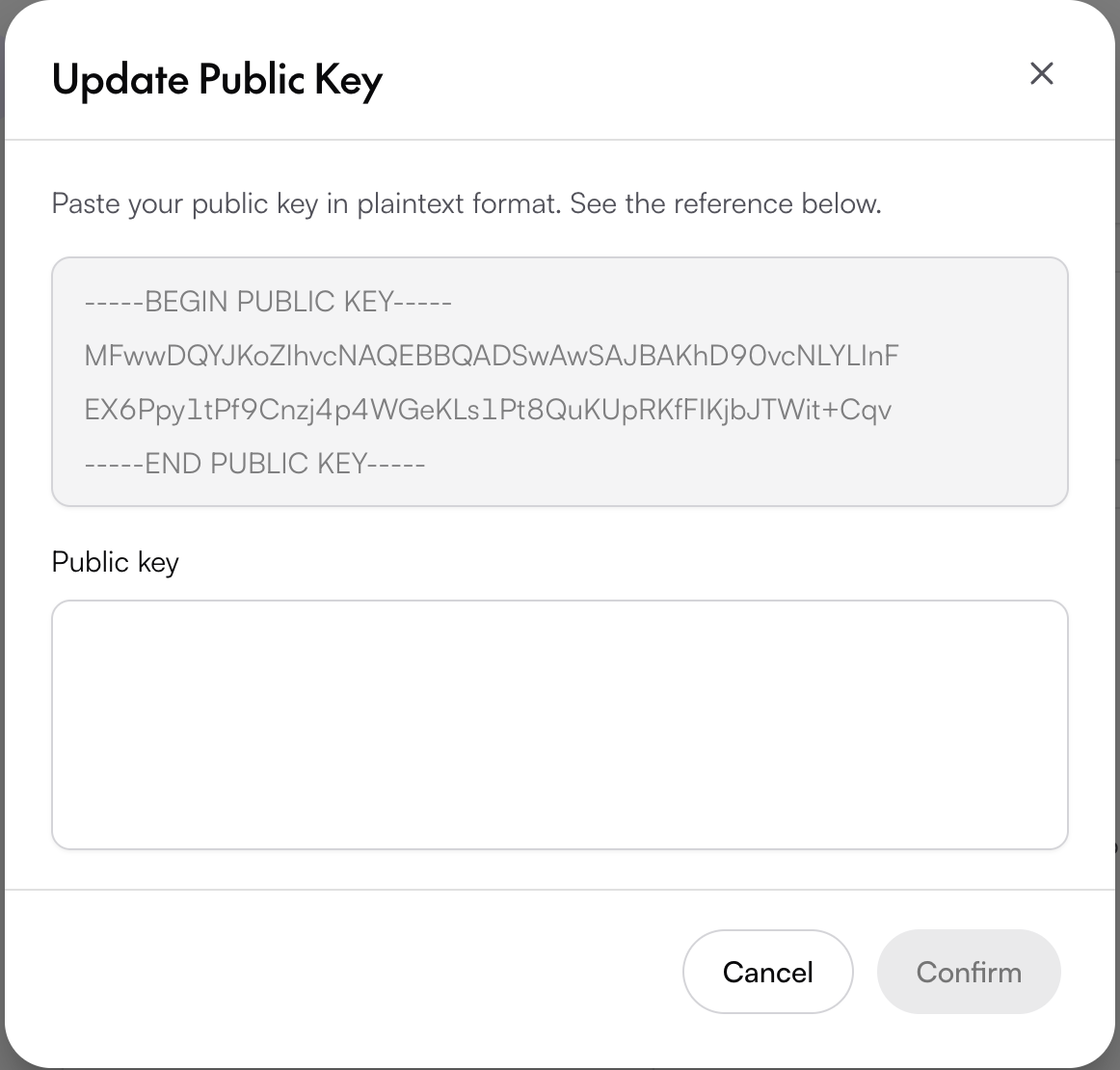
Click "Update key" to add a key or replace the existing one.
- The Update Public Key dialog expects the key in plaintext format.
- Paste the full value into the Public key field, including the BEGIN PUBLIC KEY and END PUBLIC KEY lines, following the reference block shown inside the dialog.
- Click Confirm to save the key.
Step 13: View KYC API Keys
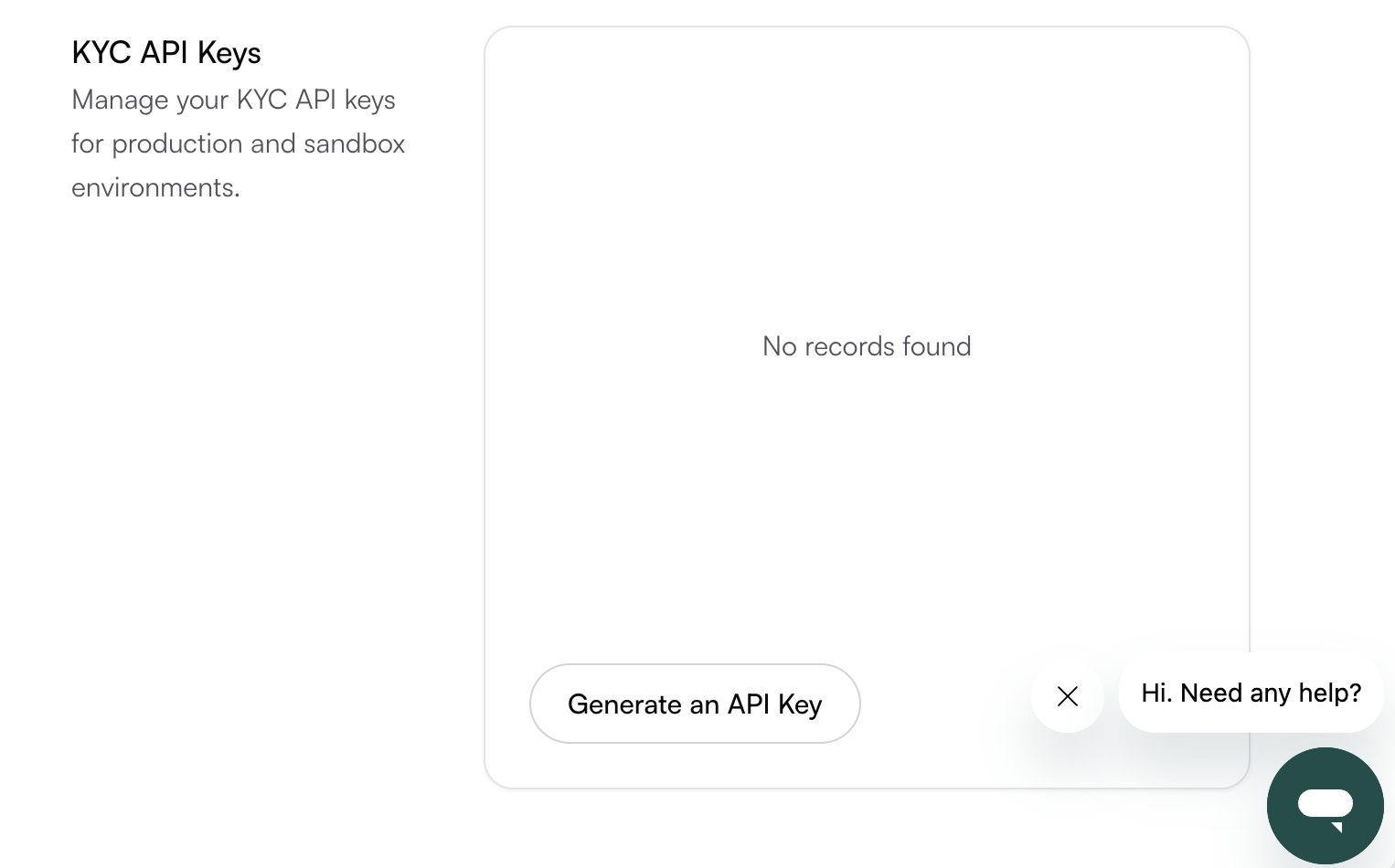
The KYC API Keys section manages the keys used for KYC requests across production and sandbox environments.
Step 14: Generate a KYC API Key
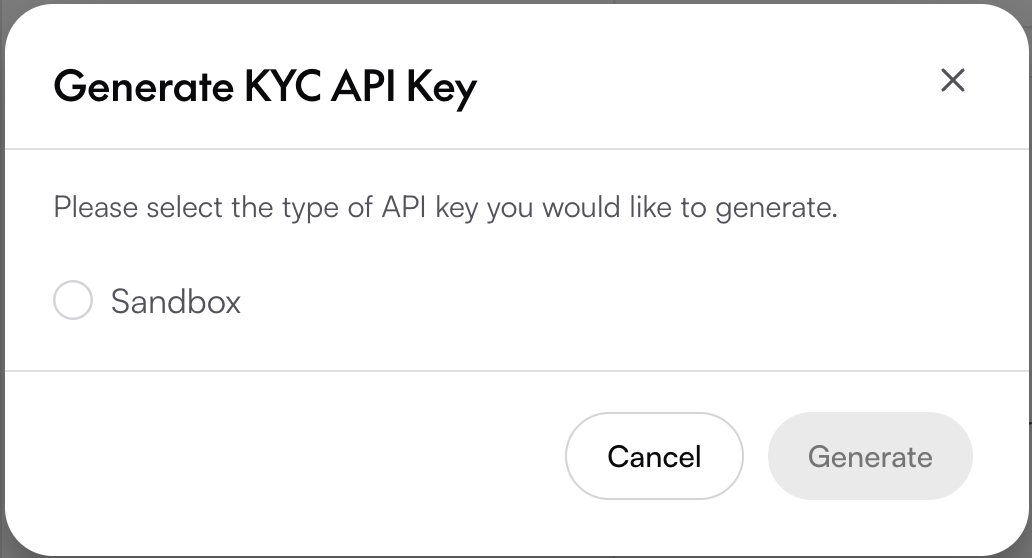
Click "Generate an API Key" inside the KYC API Keys section to open the dialog.
- Select Sandbox as the key type, then click Generate.
Scenarios
Scenario: Set Up a New Integration from Scratch
- Sign in, open the Developer tab, and work through each section from top to bottom
- Configure the webhook first so events arrive from the very first API call
- Generate a Sandbox key, whitelist the development server IP, and test before creating a Production key
Scenario: Receive Real Time Event Notifications
- Configure a destination URL under Webhooks in the Developer tab
- Watch the delivery logs to confirm events arrive successfully
Scenario: Test a KYC Flow
- Generate a Sandbox key from the KYC API Keys section
- Keep KYC keys separate from the standard API keys when configuring the integration
TL;DR
- Sign in at the Reap portal and click Get started under Card Issuing to open the dashboard
- All developer setup lives in the profile menu under Account settings → Developer
- Configure a webhook destination URL to receive real time event notifications and monitor results in the delivery logs
- Choose between Standard Authorization and Real Time Authorization before creating the first sandbox API key, as the authorisation model cannot be changed afterward.
- Generate Sandbox or Production API keys and select Read All or Write All permissions at creation
- Whitelist every server IP address that will call the Reap APIs
- The public key is optional and only needed for the
/revealendpoint - KYC API keys are managed in a dedicated section and currently generate as Sandbox only
Updated 3 months ago